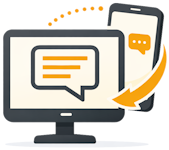
DesktopSMS connects your Android phone to your Windows PC so you can send and receive SMS messages from your desktop — locally, with no registration and no cloud relay. It works over Wi-Fi, Bluetooth, USB cable, or wired LAN.
New to DesktopSMS? Start with the homepage overview, the DesktopSMS connection types and their requirements connection guide, or the How to Send SMS from PC Using Your Android Phone walkthrough.
Can I send messages to multiple recipients?
Absolutely! You can use the Send new message dialog to send a single SMS to multiple recipients. Simply paste a semicolon-separated list of recipients or use the graphical interface to build your recipient list. Then, compose your message and hit the send button. It's that simple!
Even if your client disconnects after queuing up messages, DesktopSMS has you covered with its built-in message queue. This feature ensures that all enqueued messages continue to process reliably in the background.
Can I search my messages on desktop?
Yes. DesktopSMS includes full-text search that lets you find any SMS or MMS in your archive instantly. You can search across message content, contact names, and conversation previews.
Local search queries your synced desktop data for immediate results. Remote search extends the query to your phone's complete message history when you need to find messages that haven't synced yet. Both search modes operate entirely on your devices — no data is sent to external servers.
Press Ctrl+F to quickly open the search bar. Learn more about full-text search →
How to Pair with My Android Device
Use DesktopSMS Client to locate remote devices and pair with the selected one. To ensure your remote (Android) device is discoverable, please make sure:
- ✔ DesktopSMS Lite is installed on your Android device.
- ✔ DesktopSMS Lite application is running (make sure the application is launched).
- ✔ The 'Available for pairing' option is enabled in DesktopSMS Lite.
- ✔ Your connection (Wi-Fi or Bluetooth) is enabled and ready (Wi-Fi connected, Bluetooth discoverable, etc.).
Please note that your Android device must be active (screen on, or better yet, unlocked) to accept remote discovery attempts. You will need to confirm the pairing request on your Android device.
Unable to Connect to Paired Device?
If you're having trouble connecting to your paired device, please try the following troubleshooting steps:
- Ensure your Android device is awake (turn on the screen and unlock it).
- Make sure DesktopSMS Lite is running (launch the DesktopSMS Lite application).
- Enable 'Foreground service' in DesktopSMS Lite settings to keep it available for connection, even during longer periods of inactivity.
- Check the status of your Wi-Fi or Bluetooth connection; ensure it is turned on.
- If using Wi-Fi, verify that your Android device is connected to the same Wi-Fi network. Check the IP address on your Android device and configure it accordingly in the DesktopSMS Client settings.
I can send messages only 80 characters long, what is going on?
To remove these limits, upgrade to one of the available licenses from within the Android DesktopSMS Lite app. You can read more about upgrade options at DesktopSMS license types overview.
Connection Seems Slow, Remote Device Not Responding Well?
If you're experiencing slow responsiveness from your remote device, try plugging your Android device into a USB or AC power source. Android conserves battery by reducing resources for apps that are not in the foreground when the screen is off. Connecting to power helps maintain smoother connection performance by minimizing these resource limitations.
Sometimes my connection is dropped and I have to start DesktopSMS Lite again
Even when DesktopSMS is running with the foreground service activated, interruptions can occur, particularly on devices with newer Android versions like 9 Pie, and especially on devices from specific brands such as Nokia, OnePlus, and others. Some OEMs optimize their devices to conserve battery, which can inadvertently disrupt apps and services, making the phone less reliable for certain tasks. These optimizations may include low-level system apps or services that periodically scan running background services and terminate them without warning, even if they are running as foreground services. This behavior can lead to interruptions in the DesktopSMS service and affect its reliability on these devices.
To prevent that, in addition to enabling the foreground service, it is highly recommended to disable battery optimization for the app. Turning off battery optimization can significantly improve service stability. The app will prompt you to disable this optimization if it detects that it is enabled.
What Foreground service means, why and how to use it?
DesktopSMS Lite is a standard Android application that operates within the Android system context. Android optimizes device performance by prioritizing applications running in the foreground, while muting or even terminating tasks and services that are inactive. This design ensures efficient operation for the majority of apps that users interact with directly on their Android devices.
In the case of DesktopSMS, you primarily interact with the DesktopSMS Client on your computer rather than directly with DesktopSMS Lite on your Android device. To prevent the Android system from terminating the DesktopSMS Lite service, which would disrupt the functionality, the foreground service is activated when necessary. This foreground service ensures that the DesktopSMS service remains active and prioritized by Android, even when the app is not actively used. When the foreground service is active, a sticky notification appears in the notification area. This notification allows you to easily disconnect the remote device or move the service to the background directly from the notification.
The foreground service is automatically activated when the remote device is connected or when other tasks such as processing pending messages are underway. This ensures that all tasks can proceed smoothly without interruption.
What is the difference between scheduled messages and the message queue?
The message queue buffers outgoing messages — including bulk sends — so they keep processing in order even if the PC disconnects. Scheduling sets a future delivery time for a message; the scheduled message is stored in the queue on your phone and sent by the phone itself, so the PC does not need to stay connected. Note that scheduling requires the message queue to be enabled on the remote device.
Why can't I delete messages or mark them as read from my PC?
DesktopSMS Lite is intentionally not your default SMS app — it works alongside it. Android only allows the default SMS application to modify the messaging store, so deleting messages or marking them as read from the desktop is restricted by the system. You can read, search, and send from your PC, and manage (delete, mark as read) in your phone's default messaging app.
Does a Professional license remove all sending limits?
A Professional license removes all DesktopSMS-side restrictions: message length, recipient count, and queue size. It does not remove limits imposed by your mobile carrier — bulk sends are still subject to carrier filtering and throttling, which is why DesktopSMS queues and paces large campaigns.
Learn more about throttling and deliverability →
Who charges me for sent SMS messages?
Always your mobile carrier, according to your tariff. DesktopSMS only controls your phone and technically relays SMS sending through your phone and SIM card — every message goes out exactly as if you had sent it from the phone itself. Each SMS is therefore charged by your carrier (or drawn from your plan allowance), and DesktopSMS adds no per-message fee on top.